Requirements
I have two fairly heavy laptops, and carrying them around every day isn’t realistic; the light machines don’t have enough performance either; with dozens of browser tabs open and a few lab environments running, memory runs out quickly.
Rather than piling up hardware locally, put the desktop and applications in the Homelab and open a containerized workspace in the browser on demand. Kasm Workspaces fits this idea: each session is a Docker container, with KasmVNC streaming the desktop to the browser underneath, and it supports multiple users, group permissions, and SSO.
This post covers the full deployment of Kasm Workspaces 1.19.0 on a Debian 12 VM. Docker Hub access was blocked in the lab, so the route was offline service images plus a local workspace image; Nginx reverse proxying, the Chrome workspace, persistent profiles, and database backup were all verified for real, and the screenshots come from this environment.
Tested: offline installation of Kasm 1.19.0, Nginx/WebSocket reverse proxy, launching the Chrome workspace, persistent profiles, and database backup and restore.
Not tested: SSO/OIDC login, cross-version upgrades, whole-machine migration, and custom image builds; those sections follow the official documentation and are marked where they appear.
Technology choices
Why Kasm
Before looking at Kasm, I compared a few remote desktop and browser isolation options:
| Option | Protocol | Containerized | Multi-user | SSO support | Self-hosted | License |
|---|---|---|---|---|---|---|
| Kasm Workspaces | KasmVNC (WebSocket + WebRTC) | Native Docker | Yes | SAML / OIDC / LDAP | Yes | Community free / Enterprise paid |
| Apache Guacamole | RDP / VNC / SSH | Roll your own | Yes | Needs plugins | Yes | Apache 2.0 |
| Citrix Virtual Apps | ICA / HDX | K8s supported | Yes | Full | Hybrid | Commercial |
| noVNC + Docker | VNC over WebSocket | Roll your own | Must implement yourself | Must implement yourself | Yes | MPL 2.0 |
Kasm’s advantage is putting “container lifecycle” and “remote desktop” in one platform: the user clicks a workspace, the platform starts the matching image on an Agent, and the container is destroyed when the session ends; admins manage images, users, groups, and deployment zones from one console.
Components in 1.19
A single-host Kasm 1.19 deployment consists of the following containers (no Redis):
graph TB
    subgraph Client["Client"]
        Browser[Browser]
    end

    subgraph Edge["Edge"]
        Nginx["Nginx<br/>TLS termination + WebSocket"]
    end

    subgraph Control["Control plane"]
        Proxy["kasm_proxy<br/>:8444"]
        API["kasm_api<br/>:8080 internal"]
        Manager["kasm_manager<br/>:8181 internal"]
        Guac["kasm_guac<br/>RDP/VNC/SSH gateway"]
        DB[(PostgreSQL<br/>kasm_db)]
    end

    subgraph Agent["Agent"]
        AgentSvc["kasm_agent<br/>:4444 internal"]
        Session["Chrome session container<br/>userkasm.loc_*"]
    end

    Browser -->|"HTTPS + WSS"| Nginx
    Nginx -->|"proxy_pass :8444"| Proxy
    Proxy --> API
    API --> Manager
    Manager --> DB
    API --> Guac
    Manager -->|"schedules"| AgentSvc
    AgentSvc -->|"create/destroy"| Session

    style Browser fill:#64748b,color:#fff
    style Nginx fill:#059669,color:#fff
    style Proxy fill:#7c3aed,color:#fff
    style API fill:#7c3aed,color:#fff
    style Manager fill:#7c3aed,color:#fff
    style DB fill:#2563eb,color:#fff
    style AgentSvc fill:#d97706,color:#fff
    style Session fill:#be185d,color:#fff
| Component | Port | Role |
|---|---|---|
| kasm_proxy | 8444 (customizable) | Serves the web UI and KasmVNC session entry points over HTTPS |
| kasm_api | 8080 (inside the container) | REST API, user authentication, session requests |
| kasm_manager | 8181 (inside the container) | Schedules sessions, manages Agents, database logging |
| kasm_agent | 4444 (inside the container) | Creates and destroys workspace containers on the host |
| kasm_guac | internal | Connects to RDP, VNC, and SSH servers |
| kasm_db | 5432 (inside the container) | PostgreSQL, holding users, groups, images, sessions, and other metadata |
| RDP Gateway | 3389 | Optional thick-client RDP entry point |
The easiest thing to confuse here is the relationship between kasm_proxy and Nginx: Nginx handles the external 443/9443, kasm_proxy listens on 8444 internally; Nginx forwards all requests (including WebSocket) to kasm_proxy, which forwards them to the API or the session.
Planning
Lab environment
- Debian 12 VM, 4 vCPU / 5.8 GiB RAM, plus 8 GiB swap
- Docker 29.9.3, Docker Compose v5.7.1
- Kasm Workspaces 1.19.0 (offline service images)
- Nginx 1.22.1, listening on 9443 with a self-signed certificate
- Port 443 is reserved for other services and 8443 is taken by step-ca, so Kasm uses 8444
- The Chrome workspace image is about 6.67 GB; one session used about 540 MiB in testing
Resource requirements
Kasm’s official minimum is 2 cores, 4 GB RAM, and 75 GB disk, with Docker >= 28.5.2 and Docker Compose >= 2.40.2. The 75 GB is mainly headroom for the default workspace images; if you only load one or two custom images, the actual usage is much smaller.
| Resource | Minimum | This lab |
|---|---|---|
| CPU | 2 cores | 4 vCPU |
| Memory | 4 GB | 5.8 GiB + 8 GiB swap |
| Disk | 75 GB | 79 GB (about 38 GB free after installation) |
| Docker | >= 28.5.2 | 29.9.3 |
| Docker Compose | >= 2.40.2 | v5.7.1 |
Community Edition allows 5 concurrent sessions, but the Agent computes slots from host resources. In the lab the Zone showed 2 cores / 3.3 GiB, and a 2-core / 2.7 GiB Chrome workspace filled the slots, so a second session failed with No Agent slots available.
To run more sessions, adjust the Agent’s Cores Override and Memory Override under Infrastructure -> Docker Agents -> Edit, or lower the workspace’s Cores/Memory. Don’t just stare at the five license seats.
Port planning
| Port | Purpose |
|---|---|
| 9443 (lab) / 443 (production) | Nginx, serving HTTPS externally |
| 8444 | kasm_proxy, reached by Nginx; in production, firewall it so only the local host can connect |
| 3389 | Optional RDP Gateway; don’t expose it if you don’t need it |
| 8080 / 8181 / 4444 / 5432 | Internal Kasm container traffic, not mapped to the host |
Image preparation
If the server can reach Docker Hub, the installer pulls the service images automatically. In the lab the connection to Docker Hub was reset, so I used Kasm’s official offline bundles:
kasm_release_service_images_amd64_1.19.0-latest.tar.gz: about 1.4 GB, loading the API, Manager, Agent, Guac, Proxy, PostgreSQL, and RDP Gateway service images, about 6.5 GB in totalkasm_release_logging_plugin_images_amd64_1.1-latest.tar.gz: about 34 MB, the Docker logging pluginkasm_network_plugin_images_amd64_1.5-latest.tar.gz: about 228 MB; skipped here with--skip-egress, not needed
The workspace image is prepared separately. This article uses kasmweb/chrome:1.19.0-rolling-daily, pulled on a machine with internet access and then exported. Pull with --platform linux/amd64 explicitly because the lab is amd64; this Chrome tag currently has no arm64 variant, so ARM hosts need the image for their architecture:
# Run on a machine that can reach Docker Hub
docker pull --platform linux/amd64 kasmweb/chrome:1.19.0-rolling-daily
docker save kasmweb/chrome:1.19.0-rolling-daily | zstd -T0 -3 > kasm_chrome_image.tar.zst
After copying the image and installer bundles to the target server, load the workspace image first:
zstd -dc /tmp/kasm_chrome_image.tar.zst | sudo docker load
sudo docker images | grep kasmweb/chrome
Installation
Downloading the installer
Get the current version from Kasm’s Downloads page. The 1.19.0 installer is named kasm_release_1.19.0-latest.tar.gz:
cd /tmp
curl -O https://kasm-static-content.s3.amazonaws.com/kasm_release_1.19.0-latest.tar.gz
tar -xf kasm_release_1.19.0-latest.tar.gz
List the installer flags with --help. The ones that matter in 1.19:
| Flag | Purpose |
|---|---|
-L, --proxy-port |
Listening port for kasm_proxy, default 443 |
-e, --accept-eula |
Accept the EULA |
-P, --admin-password |
Admin password; generated randomly if omitted |
-U, --user-password |
Normal user password; generated randomly if omitted |
-J, --swap-size |
Automatically create a swap file of the given size |
-s, --offline-service |
Offline service image bundle |
--offline-logger-plugin |
Offline logging plugin bundle |
--skip-egress |
Don’t install the egress network plugin |
--skip-v4l2loopback |
Skip v4l2loopback |
--ignore-dep-failures |
Continue when optional dependencies fail |
-f, --use-static-images |
Use static-version workspace images |
-W, --default-images |
Download the default workspace images |
-W, the installer doesn’t download tens of gigabytes of default workspace images and only installs the services. Later I loaded the Chrome image separately and registered the workspace in the admin console by hand. The installer also has a hidden --no-images flag, but normally you don’t need it.Running the installer
cd /tmp
sudo bash kasm_release/install.sh \
  --install-profile noninteractive \
  --accept-eula \
  --proxy-port 8444 \
  --swap-size 8192 \
  --offline-service /tmp/kasm_release_service_images_amd64_1.19.0-latest.tar.gz \
  --offline-logger-plugin /tmp/kasm_release_logging_plugin_images_amd64_1.1-latest.tar.gz \
  --skip-egress \
  --skip-v4l2loopback \
  --ignore-dep-failures
If you don’t pass -P / -U, the installer prints the initial admin and normal user passwords at the end; save them. The installation creates /opt/kasm/1.19.0, registers the systemd service, and installs the Docker logging plugin.
After it finishes, check the containers and the systemd service:
sudo systemctl status kasm --no-pager
sudo docker ps --format "table {{.Names}}\t{{.Image}}\t{{.Status}}"
Normally you’ll see:
kasm_db                  kasmweb/postgres:1.19.0-rolling          Up (healthy)
kasm_api                 kasmweb/api:1.19.0-rolling               Up (healthy)
kasm_manager             kasmweb/manager:1.19.0-rolling           Up (healthy)
kasm_agent               kasmweb/agent:1.19.0-rolling             Up (healthy)
kasm_guac                kasmweb/kasm-guac:1.19.0-rolling         Up (healthy)
kasm_proxy               kasmweb/proxy:1.19.0-rolling             Up
kasm_rdp_gateway         kasmweb/rdp-gateway:1.19.0-rolling       Up (healthy)
kasm_rdp_https_gateway   kasmweb/rdp-https-gateway:1.19.0-rolling Up (healthy)
Right after startup, kasm_api and kasm_manager initialize the database first, and kasm_rdp_https_gateway may restart repeatedly until the API is healthy, logging Received HTML instead of JSON. It recovers on its own once the API is healthy; no manual intervention needed.
First login
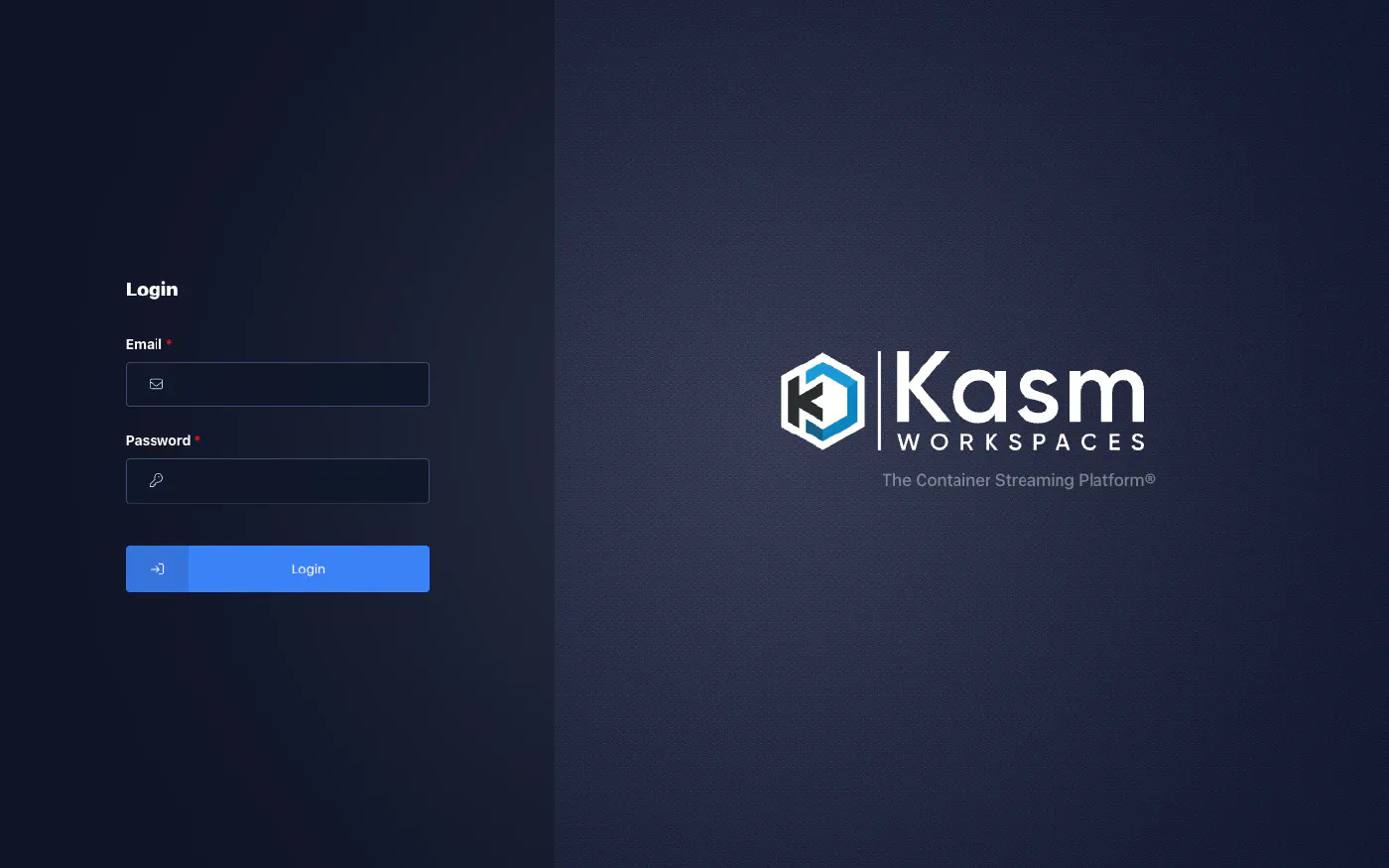
Open https://<server>:8444 in a browser and log in with the admin account the installer printed. The login fields are Email and Password; the username is the email address generated during installation, not admin.
After login you land on the admin dashboard:
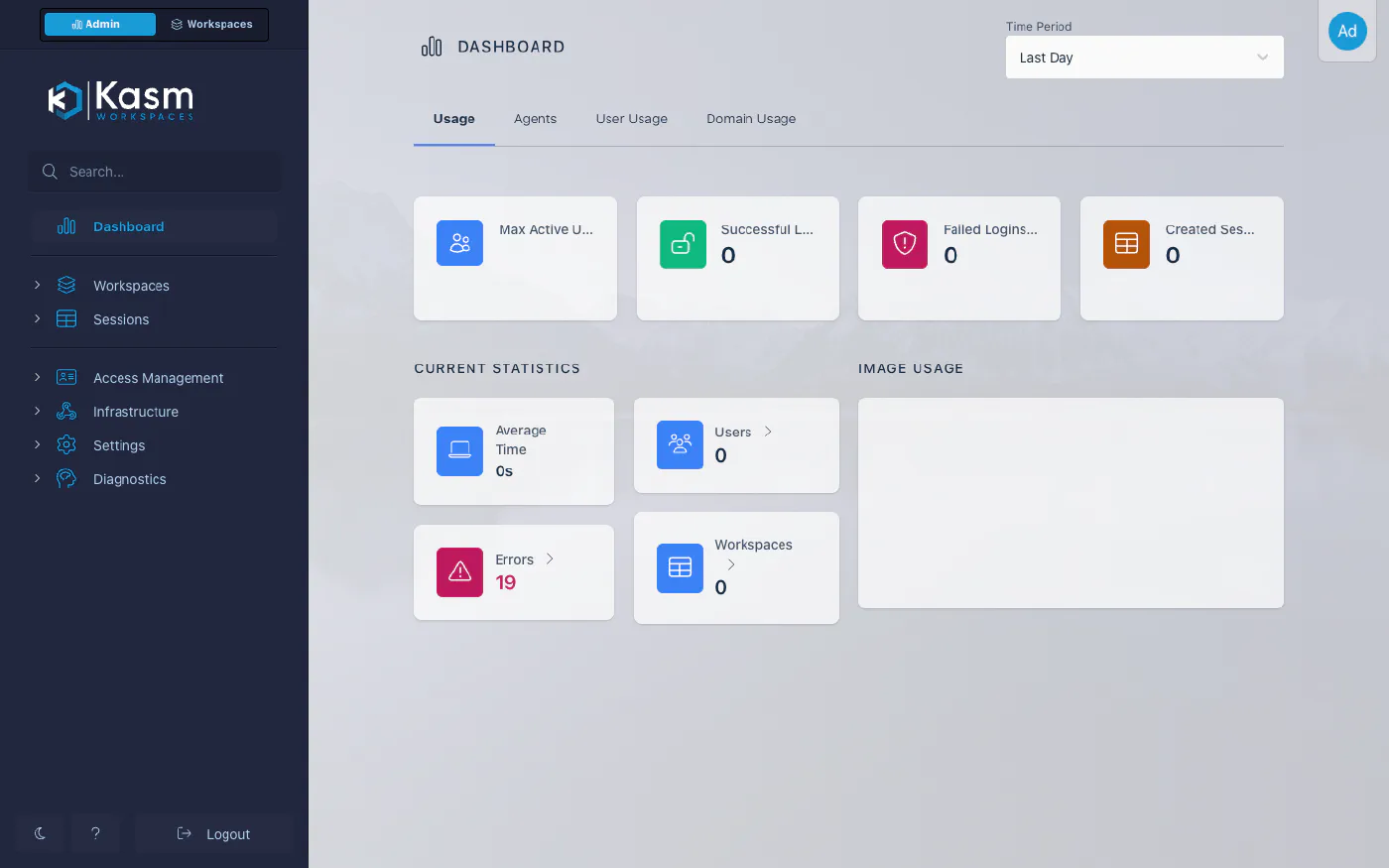
The Errors on the dashboard are leftovers from the RDP HTTPS Gateway restarting during initialization; once kasm_api is healthy they stop growing.
Nginx reverse proxy
Kasm officially recommends putting kasm_proxy behind Nginx. Here is the configuration for external 443 with Kasm on 8444:
# /etc/nginx/sites-available/kasm.example.com
server {
    listen 80;
    listen [::]:80;
    server_name kasm.example.com;
    return 301 https://$server_name$request_uri;
}

server {
    listen 443 ssl http2;
    listen [::]:443 ssl http2;
    server_name kasm.example.com;

    ssl_certificate     /etc/letsencrypt/live/kasm.example.com/fullchain.pem;
    ssl_certificate_key /etc/letsencrypt/live/kasm.example.com/privkey.pem;
    ssl_protocols       TLSv1.2 TLSv1.3;
    ssl_session_cache   shared:SSL:10m;
    ssl_session_timeout 1d;
    ssl_session_tickets off;

    # The Kasm upstream sends HSTS; adding it here would duplicate the header
    add_header X-Content-Type-Options "nosniff" always;
    add_header Referrer-Policy "strict-origin-when-cross-origin" always;

    # Needed when uploading files into a session
    client_max_body_size 1G;

    location / {
        # Kasm listens on HTTPS itself, so this must be https://
        proxy_pass https://127.0.0.1:8444;
        proxy_http_version 1.1;

        # KasmVNC depends on WebSocket
        proxy_set_header Upgrade $http_upgrade;
        proxy_set_header Connection "upgrade";

        proxy_set_header Host $host;
        proxy_set_header X-Real-IP $remote_addr;
        proxy_set_header X-Forwarded-For $proxy_add_x_forwarded_for;
        proxy_set_header X-Forwarded-Proto $scheme;
        # Must match Nginx's external port
        proxy_set_header X-Forwarded-Port 443;

        # Sessions are long-lived, so raise the timeouts
        proxy_connect_timeout 1800s;
        proxy_send_timeout    1800s;
        proxy_read_timeout    1800s;

        # Streaming requires buffering off
        proxy_buffering off;
    }
}
kasm.homelab.internal certificate (the SAN includes both localhost and 127.0.0.1). In that case X-Forwarded-Port must be 9443, and the Proxy Port in Kasm’s Zone must be 9443 too, or sessions try to connect to the wrong port. In production, switch to 443 and Let’s Encrypt; the proxy configuration stays the same.listen 443 ssl http2 now warns that the http2 parameter is deprecated; use listen 443 ssl; plus a separate http2 on;. The lab’s Nginx 1.22.1 still uses the old form.Enable and verify:
sudo ln -s /etc/nginx/sites-available/kasm.example.com /etc/nginx/sites-enabled/
sudo nginx -t
sudo systemctl reload nginx

curl -sk https://127.0.0.1:8444/api/__healthcheck
# {"ok": true}
curl -sk -o /dev/null -w "%{http_code}\n" https://kasm.example.com/
# 200
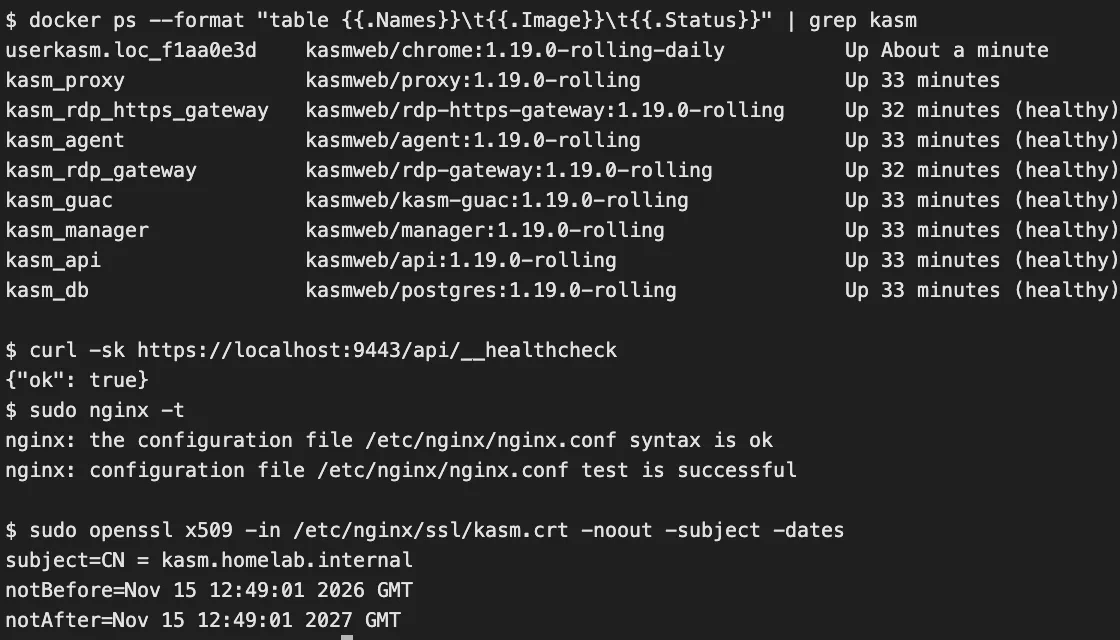
Accessing Nginx over 9443 in the lab:
Changing the Deployment Zone
Once Nginx is in place, Kasm still needs to know its external address, otherwise it generates session URLs pointing at the internal port or an internal address.
Go to Infrastructure -> Deployment Zones -> Edit and focus on three fields:
| Setting | Production | Lab |
|---|---|---|
Proxy Hostname |
$request_host$ |
$request_host$ |
Proxy Port |
443 |
9443 |
Upstream Auth Address |
The default proxy usually works |
proxy |
This is the pitfall I hit in the lab: Kasm is installed on 8444 and Nginx is external on 9443, but the Proxy Port in the Zone still defaulted to 8444. Login and the admin console worked, but clicking “launch session” made KasmVNC connect to https://localhost:8444 and the browser reported Connection Failed. Changing Proxy Port to 9443 fixed it immediately.
If SSO sits in front, Upstream Auth Address and the OIDC callback address also need the external address, or the flow may bounce back to an internal IP after authentication.
Adding a workspace
Registering the Chrome workspace
First confirm the workspace image is on the host:
sudo docker images | grep kasmweb/chrome
# kasmweb/chrome   1.19.0-rolling-daily   6.67GB
Go to Workspaces -> Workspaces -> Add Workspace:
- Set Workspace Type to
Container - Set Friendly Name to
Chrome Browser - Put a description users can understand in Description
- Set Docker Image to
kasmweb/chrome:1.19.0-rolling-daily - Set Cores to
2and Memory to2.7, with the unit set toGiB - Set CPU Allocation Method to
Inherit - Set Categories to
Browsers - Save
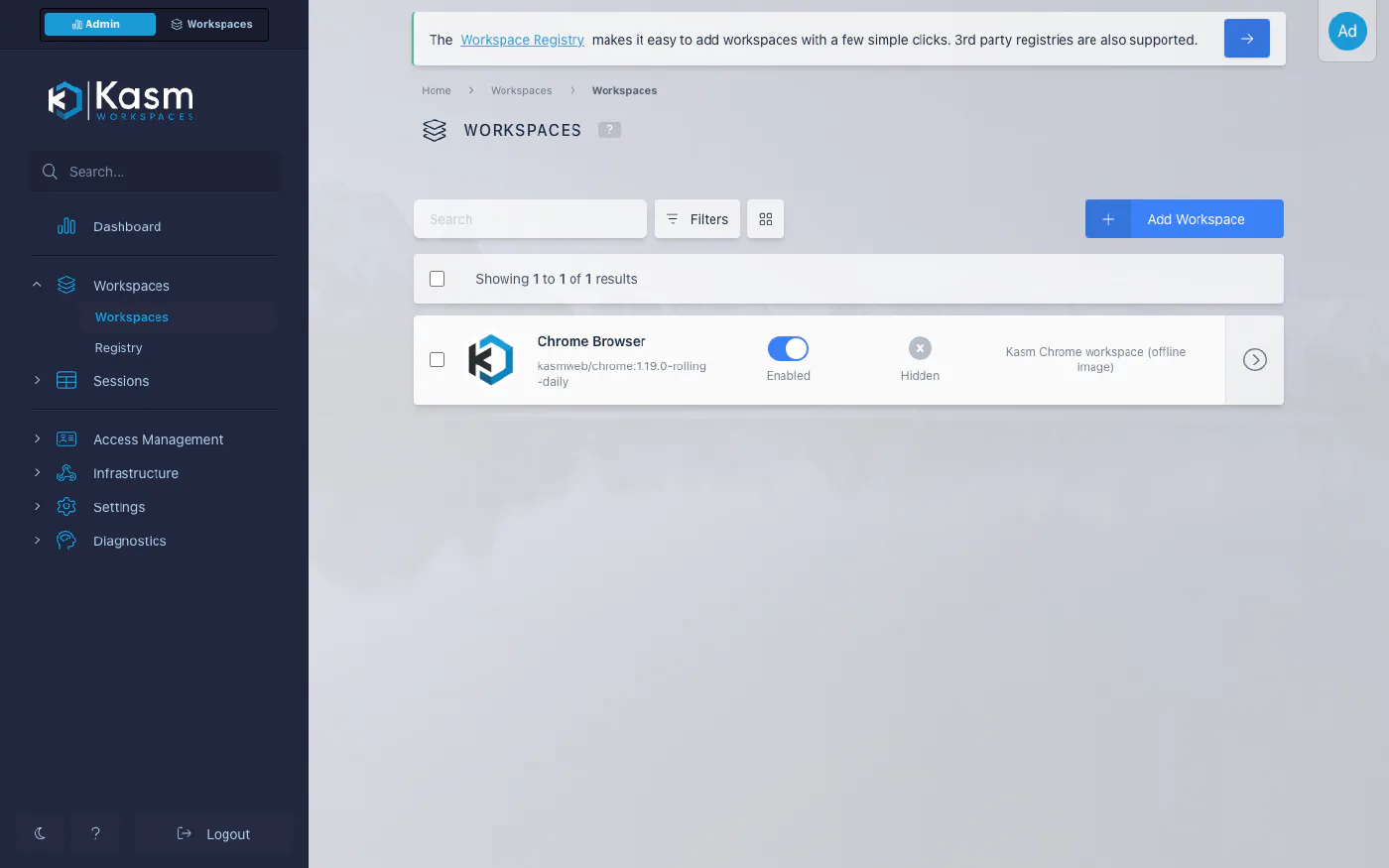
After saving, go to Access Management -> Groups -> All Users -> Workspaces and confirm the workspace is assigned to the normal users group. In the lab the new workspace appeared in the All Users group automatically; if it doesn’t, click Add Workspaces to add it.
Launching a session
Log in as the normal user and a Chrome Browser card appears on the dashboard:
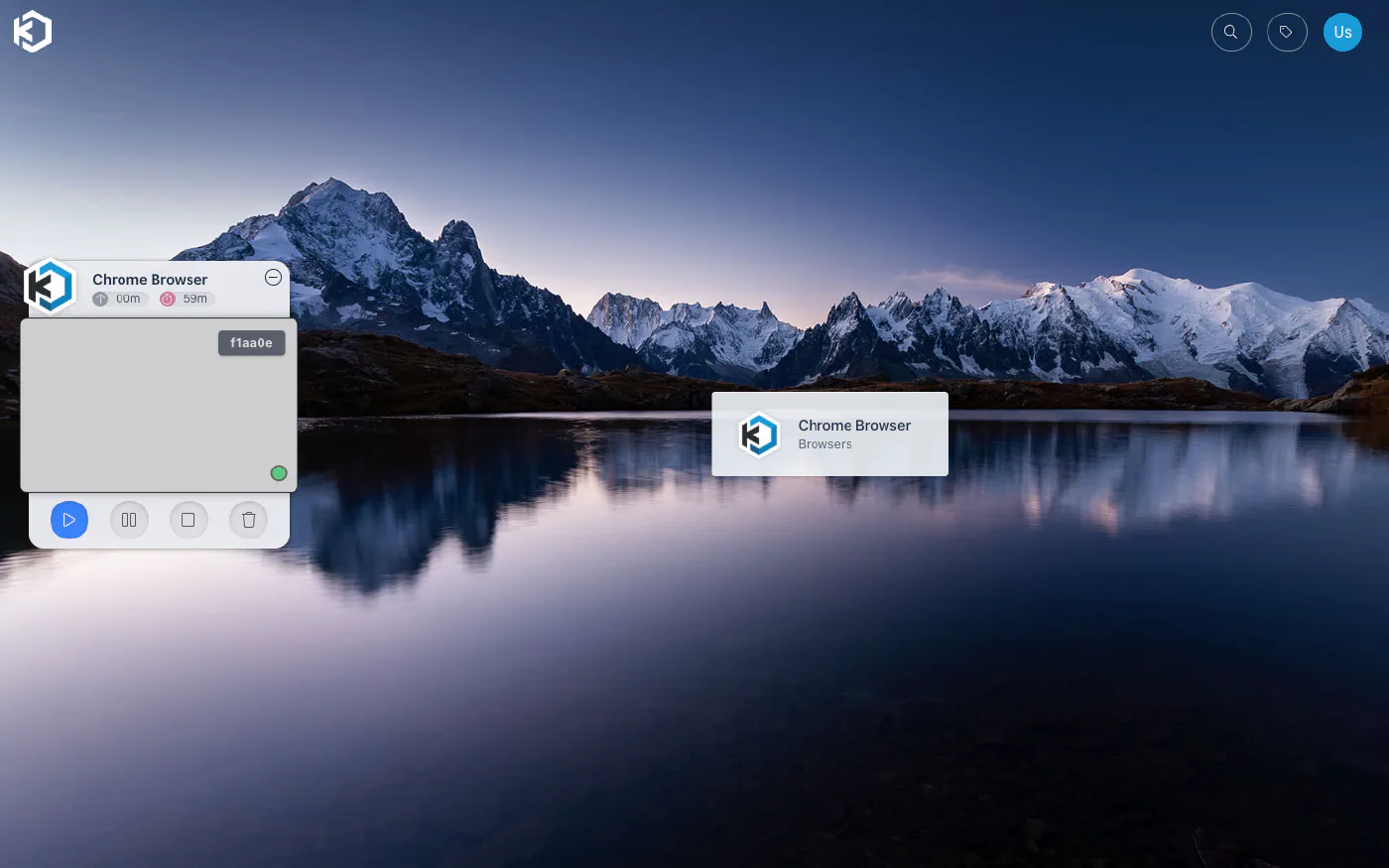
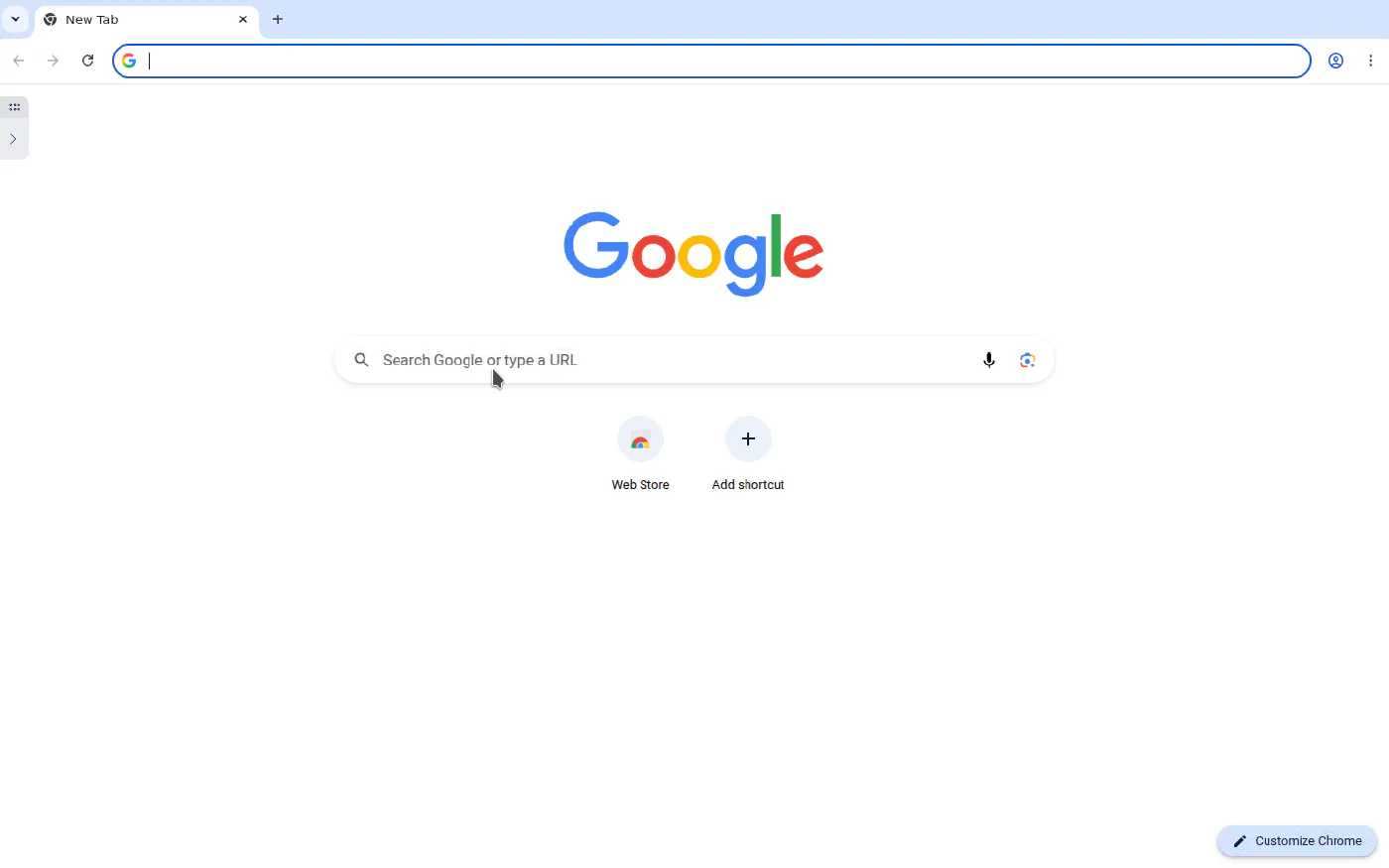
Click the card and choose Launch Session. Kasm creates a container on the Agent with a name prefixed userkasm.loc_, then streams KasmVNC to the browser. Here is a running Chrome session:
The session container is visible on the host:
sudo docker ps --format "table {{.Names}}\t{{.Image}}\t{{.Status}}"
# userkasm.loc_<id>   kasmweb/chrome:1.19.0-rolling-daily   Up ...
In testing this Chrome session used about 540 MiB of memory and around 10% CPU when idle. The control plane (API, Manager, Agent, Guac, Proxy, PostgreSQL) added up to about 1 GiB.
Persistent user data
Kasm session containers are ephemeral by default, and data is lost when they close. To keep user settings and files, configure a Persistent Profile.
Preparing the directory
sudo mkdir -p /mnt/kasm_profiles
sudo chown 1000:1000 /mnt/kasm_profiles
1000 is the UID of the desktop user inside Kasm session containers (username kasm-user).
Configuring the workspace
Edit the Chrome Browser workspace and set Persistent Profile Path to:
/mnt/kasm_profiles/{username}/{image_id}
The {username} and {image_id} templates expand to the actual user and image ID. Each workspace needs a unique path so that settings from different images don’t overwrite each other.
After saving, restart the session; the launch dialog shows Persistent Profile Enabled. Kasm binds the host directory directly into the container’s /home/kasm-user, which you can confirm with docker inspect:
sudo docker inspect userkasm.loc_<id> --format '{{json .Mounts}}'
# Source: /mnt/kasm_profiles/<user>/<image_id>
# Destination: /home/kasm-user
I created persist-test.txt in a session, closed the container, and started it again; the file was still there in the new session and also visible in the host directory. So persistence in volume mount mode works.
Backup and restore
A Kasm backup has three parts: the PostgreSQL database, the /opt/kasm/current/conf configuration and certificates, and the /mnt/kasm_profiles user data. The database is the critical piece.
Database backup
Kasm’s PostgreSQL container has no postgres role; the superuser is kasmapp:
sudo docker exec kasm_db pg_dump -U kasmapp -F t kasm > /tmp/kasm-backup.tar
ls -lh /tmp/kasm-backup.tar
This backup came out at about 8.6 MB (2 users, 1 workspace, 1 session record). Put it on a timer:
#!/usr/bin/env bash
# /opt/kasm-backup/backup.sh
set -euo pipefail

BACKUP_DIR="/opt/kasm-backup"
DATE=$(date +%Y%m%d_%H%M%S)
KASM_DIR=$(readlink -f /opt/kasm/current)
mkdir -p "${BACKUP_DIR}"

sudo docker exec kasm_db pg_dump -U kasmapp -F t kasm \
  > "${BACKUP_DIR}/kasm_db_${DATE}.tar"

# Use the resolved version directory so tar doesn't just archive the current symlink
sudo tar czf "${BACKUP_DIR}/kasm_conf_${DATE}.tar.gz" \
  "${KASM_DIR}/conf" "${KASM_DIR}/certs"

find "${BACKUP_DIR}" -name 'kasm_db_*.tar' -mtime +30 -delete
find "${BACKUP_DIR}" -name 'kasm_conf_*.tar.gz' -mtime +30 -delete
Back up user profiles separately with rsync or filesystem snapshots:
sudo rsync -a /mnt/kasm_profiles/ /backup/kasm_profiles/
Restore verification
Before a real restore, verify the backup in a scratch database:
sudo docker exec kasm_db psql -U kasmapp -d kasm \
  -c "DROP DATABASE IF EXISTS kasm_restore_test;" \
  -c "CREATE DATABASE kasm_restore_test;"
sudo docker cp /tmp/kasm-backup.tar kasm_db:/tmp/kasm-backup.tar
sudo docker exec kasm_db pg_restore -U kasmapp -d kasm_restore_test \
  --no-owner --no-privileges /tmp/kasm-backup.tar
sudo docker exec kasm_db psql -U kasmapp -d kasm_restore_test \
  -tAc "select (select count(*) from users), (select count(*) from images), (select count(*) from kasms);"
# 2|1|1
sudo docker exec kasm_db psql -U kasmapp -d kasm \
  -c "DROP DATABASE kasm_restore_test;"
To restore into the real database: stop the Kasm service, start kasm_db, run pg_restore --clean --if-exists, and start Kasm again. Make sure there are no active sessions before restoring.
Upgrade and migration
Upgrade
Back up the database and configuration first, and confirm there are no active sessions. The 1.19 upgrade script is upgrade.sh:
cd /tmp
tar -xf kasm_release_<new-version>.tar.gz
sudo bash kasm_release/upgrade.sh --proxy-port 8444
Offline environments need both --offline-service and --offline-logger-plugin. 1.19 uses rolling service images by default; if you want fixed versions, add -f (static images) at install or upgrade time, or use -F to specify a dated rolling tag. After upgrading, check:
sudo systemctl status kasm --no-pager
sudo docker ps --format "table {{.Names}}\t{{.Status}}"
curl -sk https://127.0.0.1:8444/api/__healthcheck
Migration
When moving to a new server, keep the Kasm version the same and work in this order:
- Stop Kasm on the source server and back up the database,
/opt/kasm/current/conf, the certificates, and/mnt/kasm_profiles - Install the same Kasm version on the target server, but don’t import the old database yet
- Restore the database and configuration, and sync the profile directory
- Update the Deployment Zone’s
Proxy Hostname/Proxy Port, and the callback address if SSO is in use - Start Kasm and verify login, workspaces, and sessions
If only the IP changes and the domain stays the same, the main changes are DNS and the Zone; if the domain changes too, certificates, Nginx, and OIDC callbacks all need updating.
SSO integration (optional)
Kasm 1.19 configures OIDC under Access Management -> Authentication -> OpenID -> Add Config. With Authentik as the example, the key fields are:
| Field | Example |
|---|---|
| Display Name | Authentik |
| Hostname | kasm.example.com (hostname only, no https://) |
| Client ID / Secret | Generated by the Authentik Provider |
| Authorization URL | https://auth.example.com/application/o/authorize/ |
| Token URL | https://auth.example.com/application/o/token/ |
| User Info URL | https://auth.example.com/application/o/userinfo/ |
| Scope | One per line: openid, email, profile |
| Username Attribute | preferred_username |
| Groups Attribute | groups |
| Redirect URL | https://kasm.example.com/api/oidc_callback |
Create the OAuth2/OpenID Provider and Application on the Authentik side, with the Redirect URI set to the callback above. Group mapping is added under Access Management -> Groups -> the relevant group -> SSO Group Mappings, not as JSON in the OIDC configuration.
curl, then confirm the callback address from the Kasm login page.Custom images
Kasm custom images are built on a core image; 1.19 recommends starting from kasmweb/core-ubuntu-jammy:1.19.0-rolling-daily. An example Dockerfile:
FROM kasmweb/core-ubuntu-jammy:1.19.0-rolling-daily
USER root

ENV HOME /home/kasm-user
ENV STARTUPDIR /dockerstartup
ENV INST_SCRIPTS $STARTUPDIR/install
WORKDIR $HOME

######### Customize Container Here ###########

RUN apt-get update && apt-get install -y --no-install-recommends \
    git vim tmux htop fonts-noto-cjk \
    && apt-get clean && rm -rf /var/lib/apt/lists/*

######### End Customizations ###########

RUN chown 1000:0 $HOME
RUN $STARTUPDIR/set_user_permission.sh $HOME
USER 1000
After building, set Docker Image to your image name under Workspaces -> Add Workspace. Kasm won’t use latest automatically; you must specify an explicit tag.
Troubleshooting
1. Launching a session fails with No Agent slots available
Not a license problem but a lack of Agent resource slots. Check the Agent’s available Cores/Memory under Infrastructure -> Docker Agents, and the Cores/Memory configured for the workspace. In the lab a 2-core / 2.7 GiB workspace could only run one; to run several in parallel, adjust the Agent’s Cores/Memory Override or lower the workspace resources.
2. Login works but launching a session reports Connection Failed
First check whether the Zone’s Proxy Port equals Nginx’s external port. What we hit was the Zone still at 8444 while Nginx was external on 9443, so KasmVNC connected to 8444 and failed. Changing it to 9443 fixed it.
3. Image loading fails during an offline install
Make sure --offline-service points at the Kasm service image bundle, not the installer; workspace images are loaded separately with docker load. If the server can’t reach Docker Hub, the installer won’t pull workspace images, and you need to register the local image in the admin console.
4. kasm_rdp_https_gateway keeps restarting
It logs Received HTML instead of JSON while the API isn’t ready and recovers once kasm_api is healthy. If it’s still restarting after a few minutes, check the kasm_api logs and the database connection.
5. Nginx returns 502
First hit https://127.0.0.1:8444/api/__healthcheck directly. If 8444 is fine and Nginx returns 502, check whether proxy_pass uses https://, whether proxy_ssl_verify is rejecting the self-signed certificate, and whether Nginx can reach 127.0.0.1:8444.
6. Two HSTS headers in the response
Duplicate headers appear when both Nginx and the Kasm upstream add HSTS. Keep one layer to avoid duplicates.
Operations notes
# Service status
sudo systemctl status kasm --no-pager

# Container status
sudo docker ps --format "table {{.Names}}\t{{.Image}}\t{{.Status}}"

# Health check
curl -sk https://127.0.0.1:8444/api/__healthcheck

# Resource usage
sudo docker stats --no-stream --format "table {{.Name}}\t{{.CPUPerc}}\t{{.MemUsage}}"

# View API logs
sudo docker logs kasm_api 2>&1 | tail -50

# Restart Kasm
sudo systemctl restart kasm
Security recommendations
- Expose only Nginx’s 443 (9443 in the lab); don’t expose 8444, 8080, 8181, 4444, or 5432
- Don’t publish 3389 if you don’t need RDP
- Change the default passwords generated at install time, for both admin and normal users
- In production, replace Nginx’s certificate with a trusted one; if you also connect to Kasm directly or make Nginx verify the upstream, replace Kasm’s self-signed certificate with a trusted one at
/opt/kasm/current/certs/kasm_nginx.crtandkasm_nginx.key - Community Edition is limited to non-commercial use and at most 5 concurrent sessions
Version upgrade checklist
- Read the Kasm 1.19 Release Notes
- Back up the database, configuration, and profiles
- Confirm there are no active sessions
- Download the new installer and the matching offline image bundles
- Run
upgrade.shand watch the database migration and container startup - Check
/api/__healthcheck, login, workspaces, and an actual session
Comments